
Read and write, with a clear workflow
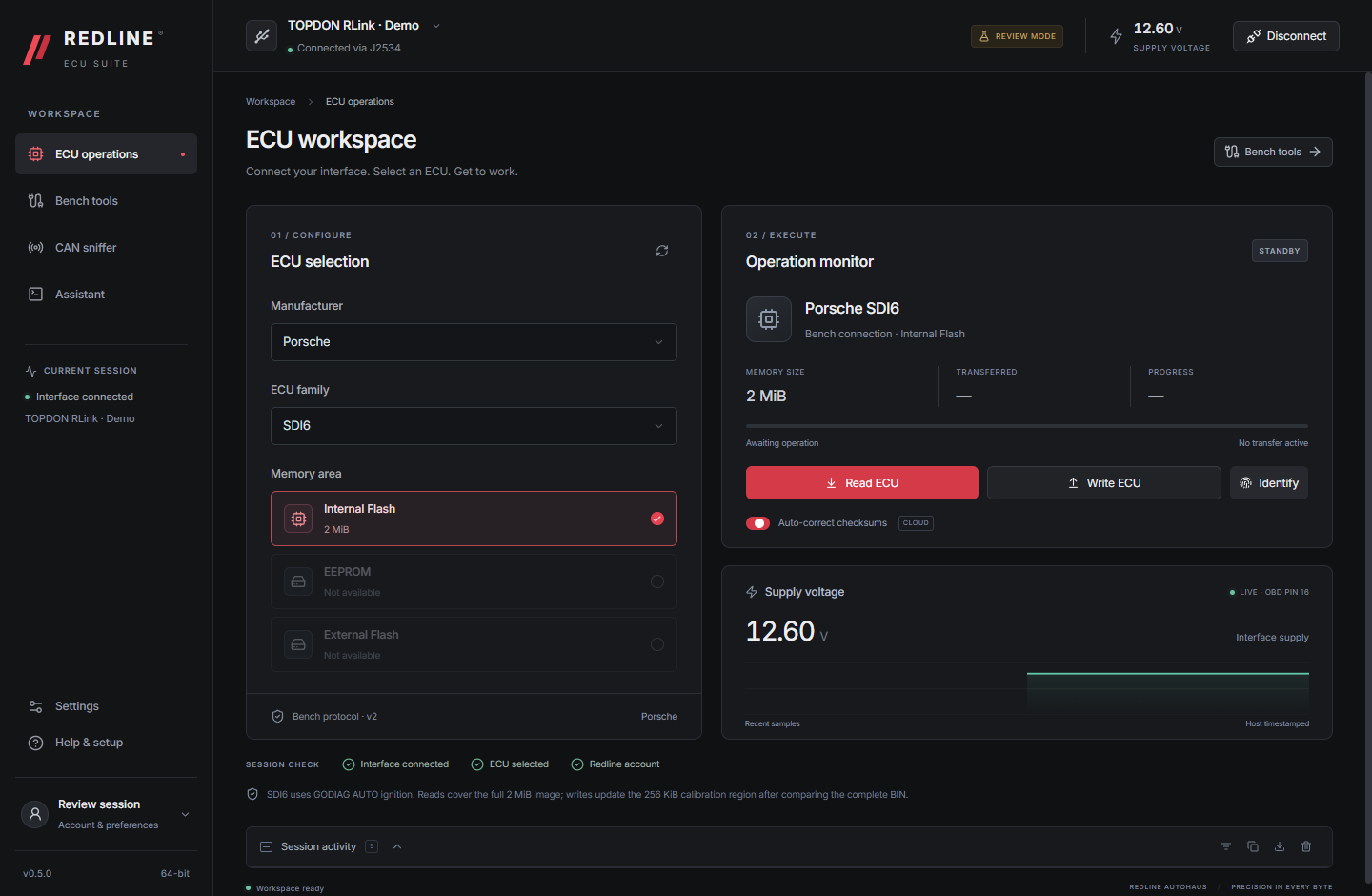
Choose your make, ECU family and memory. See transfer progress, review the prepared file before writing, and save completed reads as BIN files.
REDLINE ECU SUITE · WINDOWS DESKTOP
From the first connection to the verified file. Bring ECU operations, live voltage, CAN capture and your analysis tools together in Redline ECU Suite.
BUILT AROUND THE BENCH
Read, capture, inspect and prepare the next step without losing sight of the connected ECU.
Choose your make, ECU family and memory. See transfer progress, review the prepared file before writing, and save completed reads as BIN files.
Use API-side checksum correction where the protocol offers it, or switch it off to retain exact file bytes. Check support for each memory area.
Watch the supply-voltage graph in bench tools and during ECU reads and writes, with the latest measurement always visible.
Control supported ignition and boot outputs from the workspace. Protocols can sequence bench power through the compatible J2534 interface.
Select pins 6/14 or 3/11, choose the bitrate, filter identifiers, pause the frame view, and export CAN frames with timestamped voltage samples.
Read part number, software, hardware and VIN fields on the supported SDI6 bench protocol before choosing a file.
Run the real Codex terminal, attach session context, and connect local WinOLS and Ghidra integrations for capture and firmware analysis.
Browse the desktop before signing in. Use your Redline account for available ECU operations and get the current protocol catalogue from the cloud.
INSIDE THE APPLICATION
Actual application screens, shown with demonstration data. Open any image for a closer look.
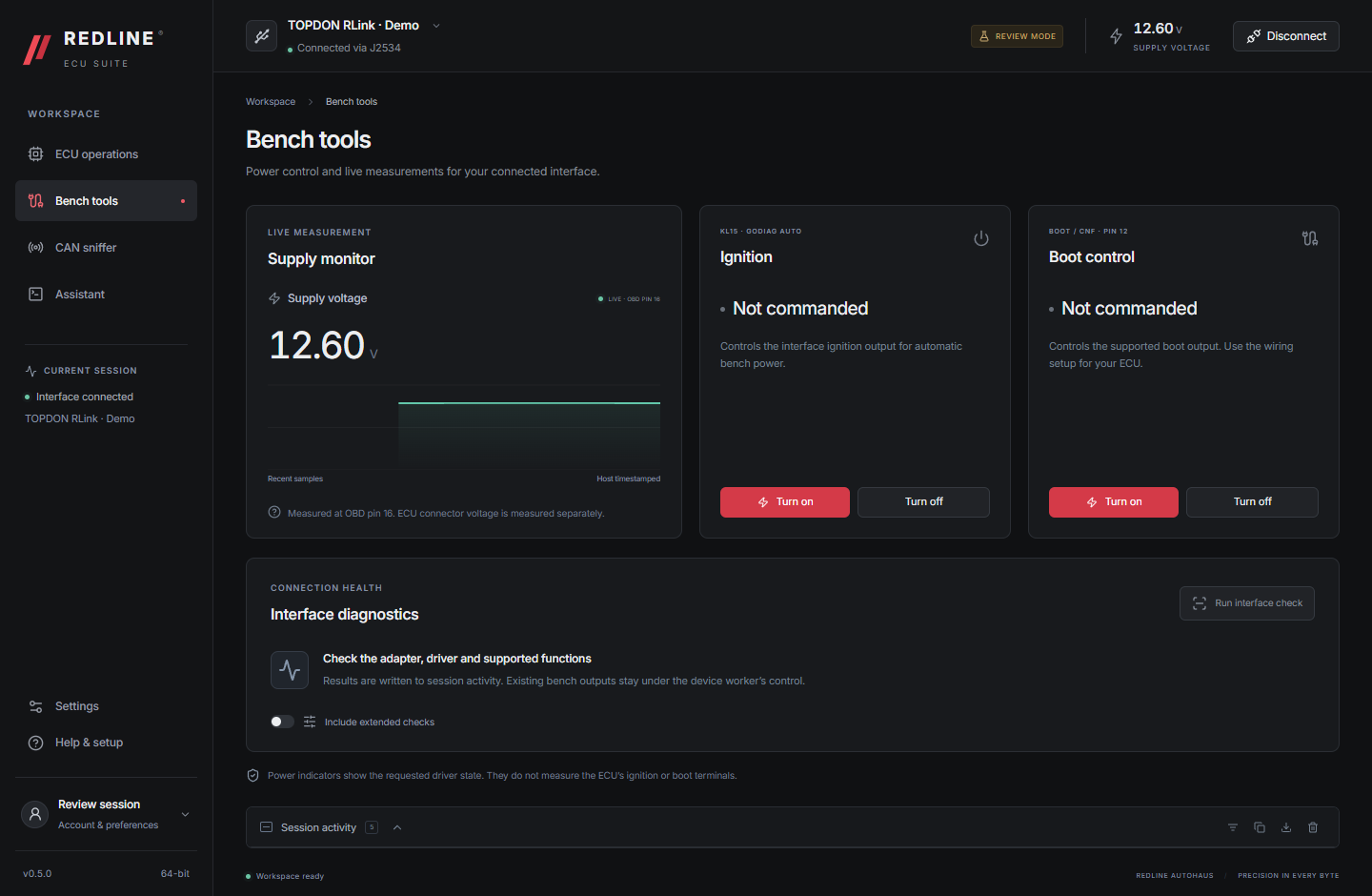
Check supply voltage and manage supported bench outputs from one workspace.
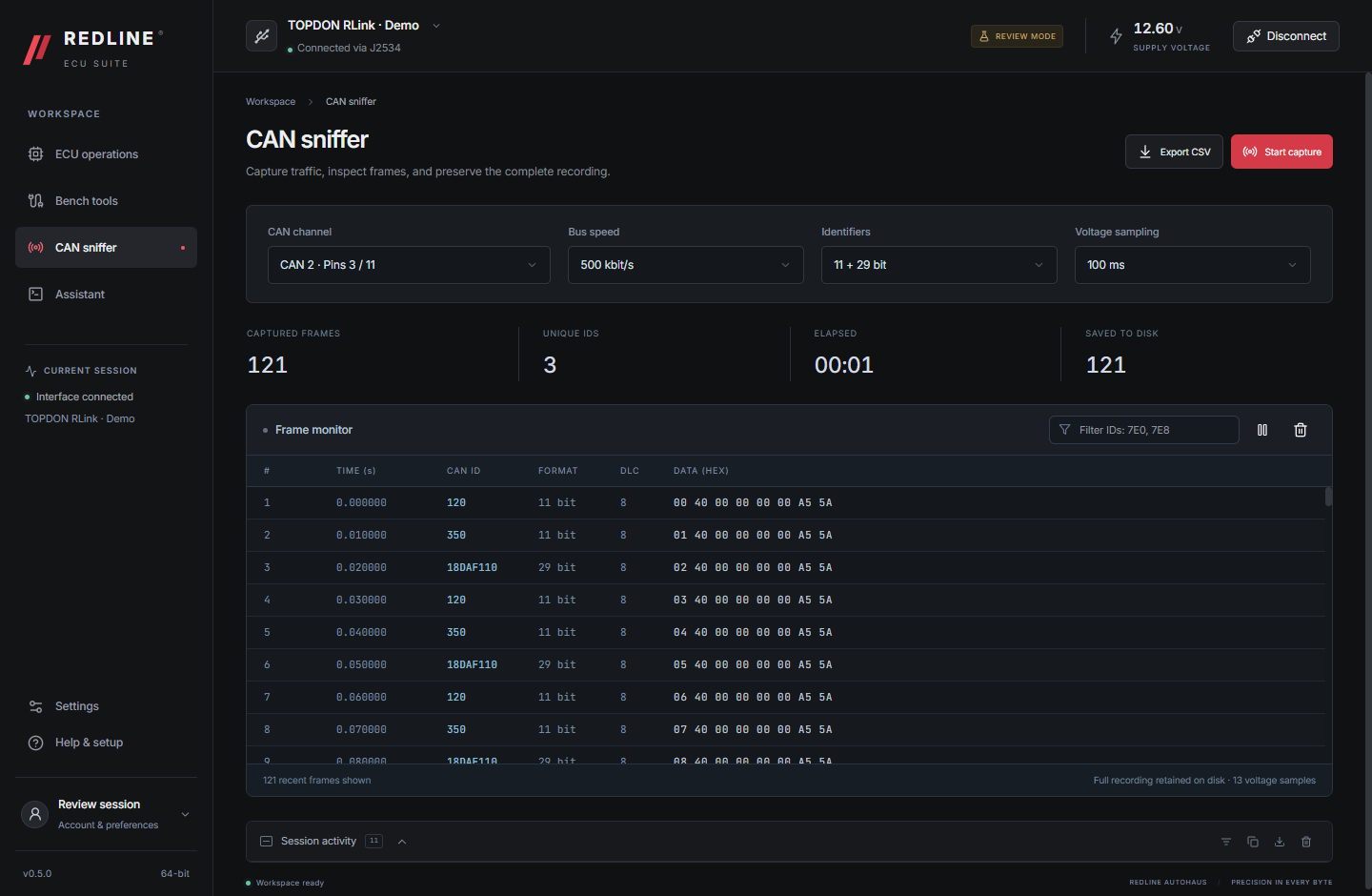
Monitor either CAN channel and retain frames alongside voltage samples.
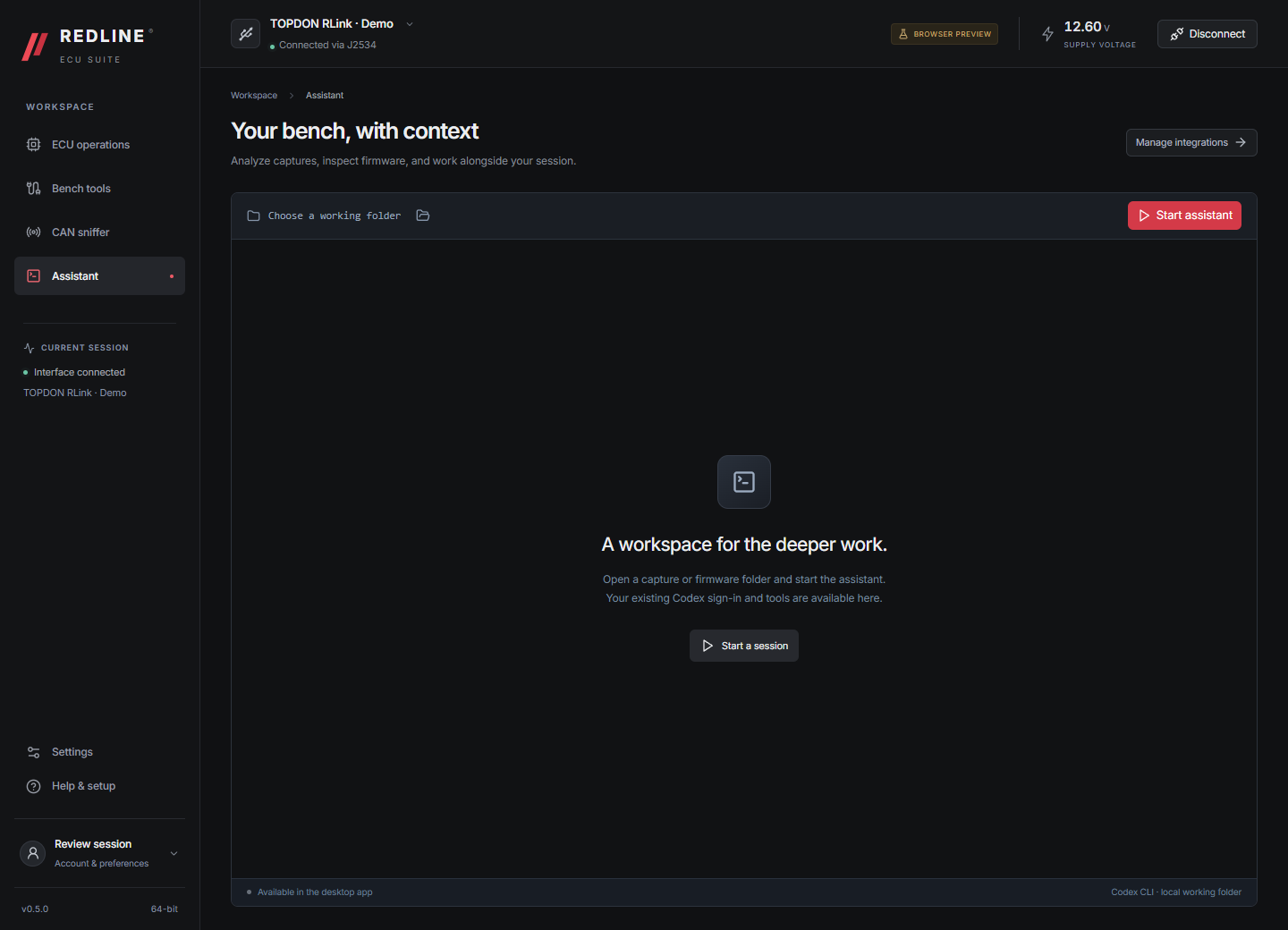
Work with the Codex terminal and attach relevant session context.
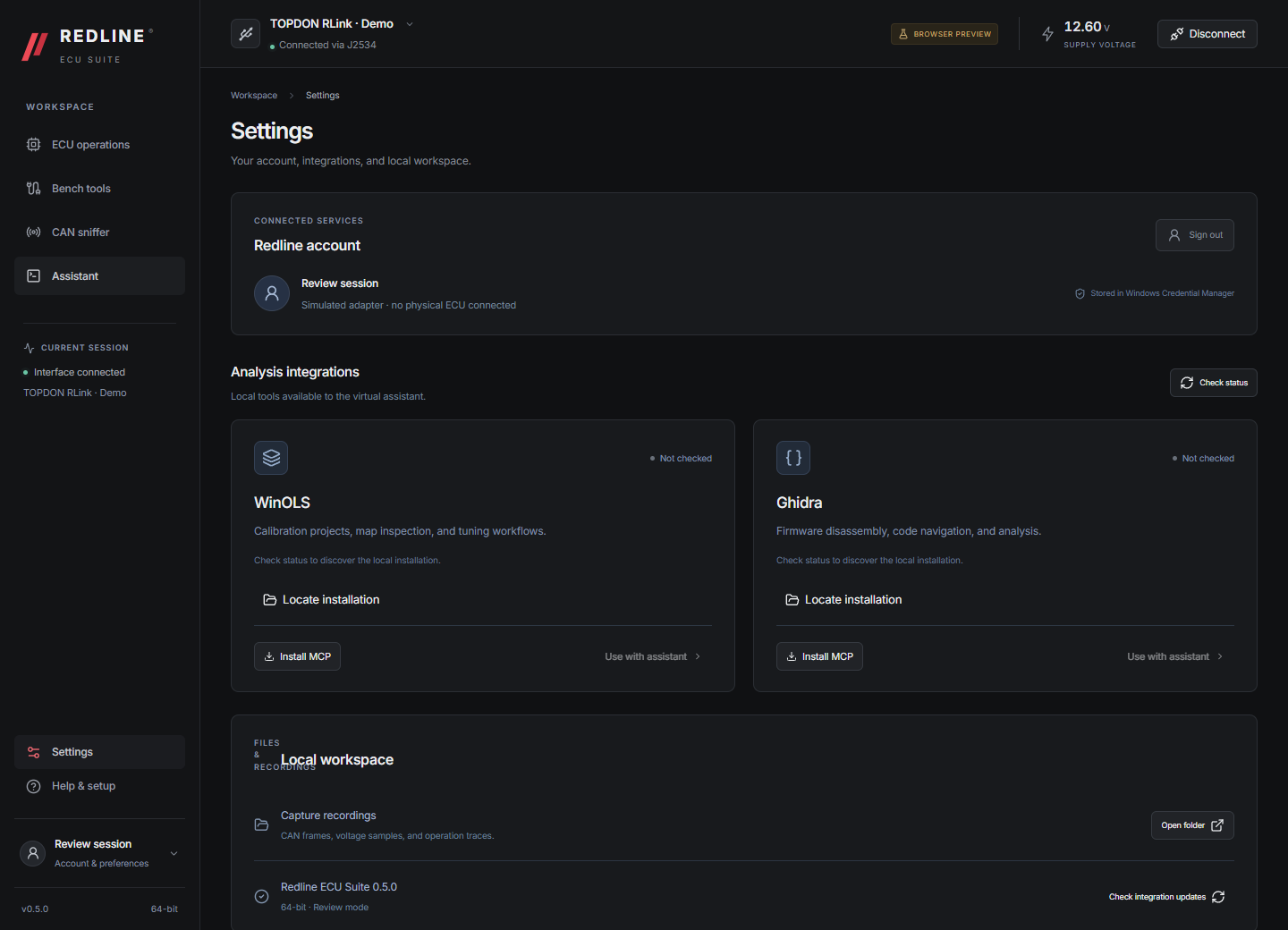
Manage your Redline account, local analysis tools, and recording folder.
A CLEAR PATH THROUGH THE JOB
Start with a compatible J2534 interface and the wiring reference for your exact ECU family.
Check ECU compatibilityInstall the adapter’s J2534 driver and choose the matching 32-bit or 64-bit Suite build. Use the bench or boot setup specified for the ECU.
Select the vehicle make, ECU family and memory area. The live catalogue determines which operations and checksum options are available.
Monitor progress and voltage. Completed reads open Save As with a manufacturer, ECU family and memory filename. Writes show a file review before programming.
CHECK THE ECU BEFORE THE CONNECTION
Browse current read and write support, flash and EEPROM availability, checksum correction, and published pinout guides.
Browse supported protocolsThe directory reads the same active protocol catalogue as ECU Suite. New releases appear automatically, without waiting for a website update.
Choose a Bench or Boot method to open a published wiring guide when one is available.
BEFORE YOU START
A Windows 10 or Windows 11 PC, Microsoft Edge WebView2 Runtime, a compatible J2534 interface and driver, and the bench supply and wiring required by the selected protocol. Match the Suite build to the driver’s 32-bit or 64-bit architecture.
Yes. You can explore the desktop interface before signing in. Available ECU operations and private protocol downloads use your Redline account.
No. Connection method, memory access and checksum correction are protocol-specific. The supported protocols directory shows the current capabilities. SDI6 supports a full 2 MiB read; its write operation is limited to the 256 KiB calibration region.
The assistant embeds the Codex CLI terminal and can receive session context you choose to attach. Your Codex sign-in and access are separate. WinOLS and Ghidra integrations connect to local installations; any required licences remain your responsibility.